
Book Term 4 Classes
We are switching from WeTeachMe to Groovio as our new booking and studio management system. Bookings for Term 4 are open and it’s our first time using it so please reach out to admin@vulcana.org.au with any questions you have.
Term 4 and other classes are now available to book through Groovio. Book on our website below, or download the Groovio app, sign up, search for Vulcana, and book your class!
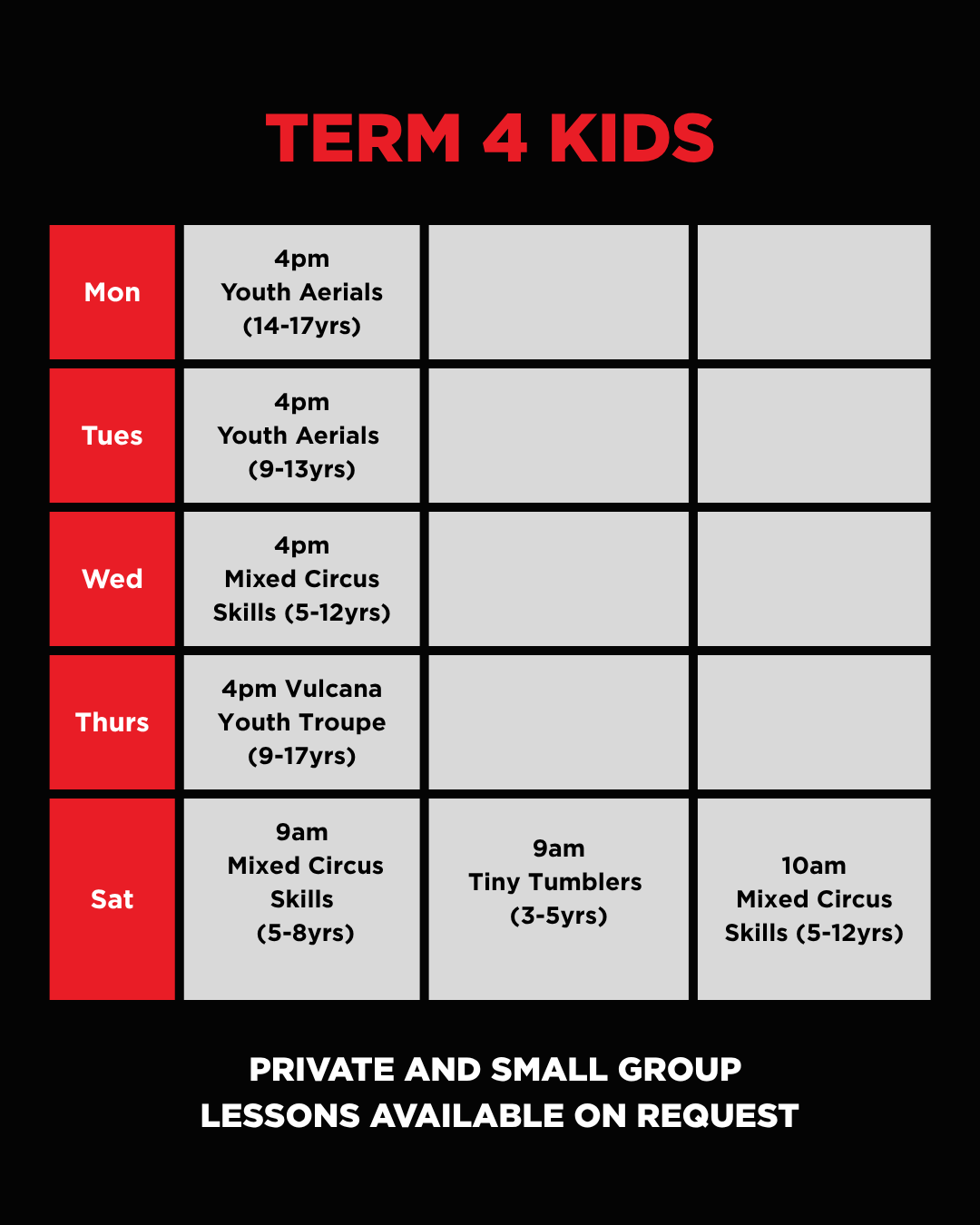
Term 4 Kids Classes: Monday 5 October to Sunday 13 December 2026 — 10 weeks
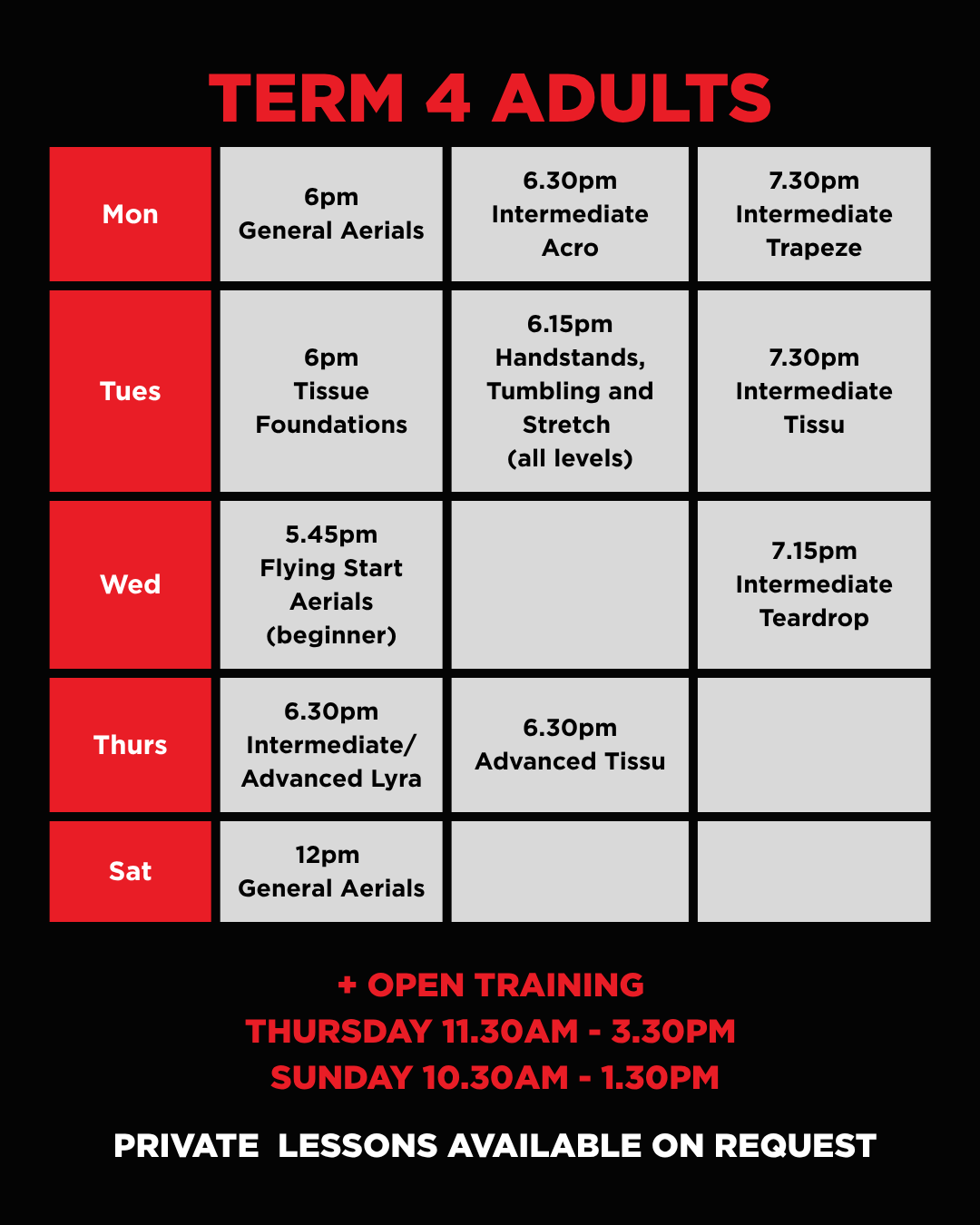
Term 4 Adults Classes: Monday 12 October to Sunday 13 December 2026 — 9 weeks
For these school holidays only (Saturday 19 September – Monday 5 October 2026), Holiday Programs will be booked through WeTeachMe. Adults and Kids and Toddler holiday classes are available now.
Book below or download the Groovio app


Getting started: A guide to using the Groovio app
Signing Up & Logging In
Students sign in using their email address. After entering their email, a one-time verification code is sent to confirm their identity — no password required. First-time users will be prompted to complete their profile and add emergency contact details before continuing.
Finding a Studio
Once logged in, students land on the home screen where they can search for a studio by name or location. After finding their studio, they tap Connect with Studio to link their account. Connected studios appear on the dashboard for quick access. Students can be connected to multiple studios.
Browsing the Schedule
After selecting a studio and location, students can browse the class schedule in a few ways:
- Calendar View — A monthly calendar showing all available classes. Students can tap any date to see what’s on and navigate forward or backward by week or month.
- Class List — A scrollable list of upcoming classes with times, instructors, and available spots.
- Search & Filter — Search by class name or filter by class type and tags to find exactly what you’re looking for.
Each class listing shows the class name, time, duration, instructor, and how many spots remain.
Booking a Class
Tapping a class opens its details page. From here, students tap Book Now to begin checkout. A Services button sits right next to Book Now on the studio’s page, making it fast to find and book services as well.
During Checkout
- Class details – Confirms the class, date, time, and instructor.
- Suggested memberships & packages – If you have purchased a memberships or package that cover this class, they will be shown here.
- Discount code – Students can apply a promo or discount code at checkout.
- Payment method — Students can pay by:
- Saved card (from cards on file)
- New card (entered at checkout, with option to save for future use)
- Waivers — Students must agree to proceed.
- PAR-Q — The Physical Activity Readiness Questionnaire enabled, students will be prompted to complete it after their first booking.
Once confirmed, a booking confirmation is shown and the class appears under My Purchases.
My Purchases
The My Purchases section shows all of a student’s active and past bookings for that studio, including classes, memberships, and packages. From here students can:
- View booking details (date, time, instructor, room)
- Cancel a booking (subject to the studio’s cancellation policy)
- Let the studio know ahead of time that they won’t make a class
Waitlist
When a class is fully booked, students will see a Join Waitlist button instead of Book Now. Joining the waitlist does not charge the student. If a spot opens up, the student is notified and can confirm their booking at that point. Students can leave the waitlist at any time. They can also see every waitlist they’ve joined — and their current position on each — by going to the Me section and tapping Waitlists.
Memberships
Students can browse and purchase memberships directly from the studio’s page or during class checkout. Each membership listing shows
- Pricing and billing frequency (yearly)
- Applicable class types (by tag)
- Sign-up fee (if applicable)
Active memberships are visible in My Purchases, showing status, next billing date, and remaining credits.
Packages
Packages work similarly to memberships but are purchased once rather than on a recurring basis, Packages will be used to purchase private classes. Each package shows:
- Number of classes included
- Validity period
- Any weekly usage limits
- Applicable class types
Remaining credits and expiry dates are visible in My Purchases.
Services & Appointments
Students can browse and book one-on-one or group services (such as private lessons or assessments) from the studio’s page. The Services button next to Book Now takes students straight to the list of bookable services.
Booking a Service
- Select the service and choose a staff member (if applicable).
- Pick a date and available time slot.
- Complete the checkout with the same payment options as class bookings.
Service Requests
After booking, the request appears under My Service Requests with a status of Pending, Accepted, or Rejected
Profile & Account
Students can manage their account from the Profile section.
Personal Details
Students can update their first and last name, date of birth, phone number and country code, and profile picture.
Emergency Contact
Students can add and update an emergency contact including name, relationship, and phone number.
Children
Parents can add child accounts linked to their profile. Each child has their own name, date of birth, gender, and email. Adding a child requires a digital signature and agreement acknowledgment from the parent. Once added, parents can book classes on behalf of their children, and child-specific waivers, PAR-Q, and questionnaire responses are tracked separately
Manage Cards
Students can view, add, and remove saved payment cards. Card details are stored securely via Stripe — only the card brand, last four digits, and expiry date are visible. Students can set a default card for future purchases. Card management is per-studio. If a student is connected to multiple studios, they can select which studio they’re managing cards for.
Notification Preferences
Students can manage which email notifications they receive, toggling individual categories on or off. On mobile, push notification preferences can be managed separately.
Notification History
Students can review all notifications they’ve received under Notification History. Notifications are clickable and take the student to the relevant page in the app (for notifications sent from the July 2026 update onwards).
Waitlist
Under the Me section, tapping Waitlists shows every waitlist the student has joined and their current position on each.
FAQs
Studio-specific frequently asked questions are available under the Profile section.
Wallet (Mobile App)
The wallet stores a balance that can be applied toward class bookings and purchases at checkout. On the mobile app, students can:
- View their current wallet balance
- Add funds via card payment
- View their full wallet transaction history
If wallet funds are used during checkout, the balance is automatically deducted and the remaining total (if any) is charged to the selected card.
Chat (Mobile App)
Students can message their studio directly through the chat feature on the mobile app. The chat inbox shows all conversations, and messages are delivered in real time. Studios with the Chat feature enabled can respond from the studio dashboard.
What’s on at Vulcana?
Whether it’s at QPAC, Brisbane Powerhouse, Vulcana HQ or in your own driveway, the next show will be listed here. The Vulcana is home to creativity, where artists gather to hone their crafts all year round.